Onboarding SEB
SEB (Skandinaviska Enskilda Banken) is a bank in the Nordic region, offering a wide range of financial services to businesses and individuals. This article guides you through the process of setting up direct communication between SEB and Business Central.
To prepare for direct communication through SEB
Wichtig
Self-service onboarding via SEB Internet Bank is currently not available in Germany. To proceed, contact your SEB client representative to create an agreement.
Before you can establish a connection with SEB, you must first establish an agreement with SEB to enable connectivity. When the agreement is in place, SEB provides you with the necessary login credentials to authenticate the connection and ensure secure communication.
To create an agreement in the SEB Business Arena:
- Log in to SEB Business Arena and navigate to Products and Services.
- Click Automatic bookkeeping – payments in ISO format and click Fill in and order.
- From the list of providers, select Continia Software, select the Only on C&I Online checkbox, and click Next.
- In the Before you connect dialog box, read the information and click Next.
- Select the accounts to connect by clicking Add account.
- Select the accounts you want to connect and click Done. Repeat this step for each account, one at a time. When all accounts are connected, click Next.
- Enter the Contact information, then click Next.
Wichtig
Make sure you remember the email address you enter here, as you must use the same address during the onboarding process.
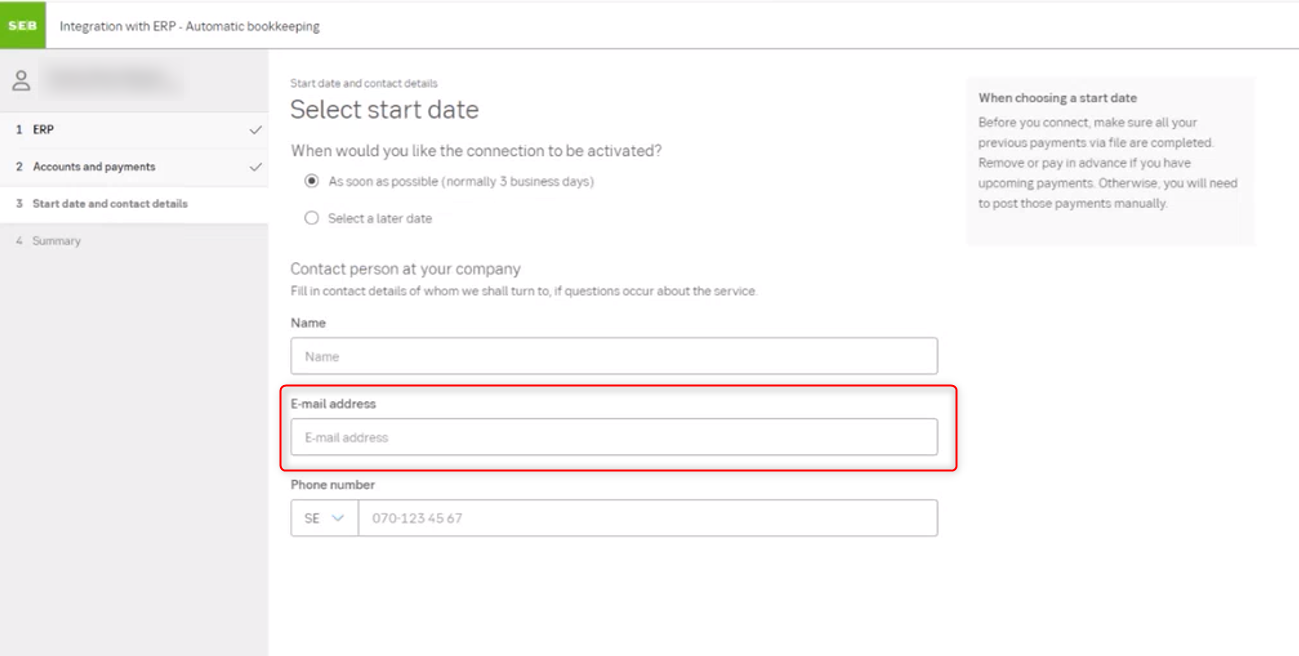
- Review the details and click Apply.
- Sign with your Digipass. After signing, click Close. A message saying We have received your order appears. It takes up to two bank days for the agreement to be ready.
- When SEB approves the agreement, the necessary information is available in SEB Business Arena for you to complete the sign-up process in Continia Banking.
Before connecting to SEB, you must sign an additional agreement to access the File Handling Service (FHS) in C&I Online. This agreement is required for viewing and authorizing payments in ISO format, as well as for uploading payment, salary, and direct debit files in various formats while allowing the download of reporting files.
To authorize FHS file signing in C&I Online:
- Log in to C&I Online.
- On the action bar, navigate to Authorizations > Authorizations.
- Click Create new authorization.
- On the Agreement tab, in the Agreement field, select FHS file signing.
- Assign a name to the authorization (for example, Signing of Payments) and click Continue.
- On the Services tab, select the services for the payments you want to sign and click Continue.
- On the Delimitation tab, Continia recommends selecting All present and future accounts. Then click Continue.
- On the Users tab, select the condition (solely, two jointly, groupwise) and click Continue.
- After you choose the condition, you can add users. Click Add Users, select the users, and click Continue.
- Review the information and click Save.
- Click Edit and Sign and select the checkbox for the agreement that needs signing.
- For single-user signing, click Sign and authenticate with Digipass. For multiple users, go to Authorizations > Edit and Sign.
When the agreement is signed, the new menu Sign Payments appears under Payments.
To set up direct communication through SEB
When you have set up the agreement and have access to the necessary information in SEB Business Arena, you're ready to complete the sign-up process in Continia Banking.
To set up direct communication through SEB:
- Search () for and select Bank Account Setup.
- On the Bank Account Setup page, select an existing bank account or create a new one.
- To enable direct communication through SEB, select Direct in the Communication column, then click Next.
- On the Bank Account Setup page, you're prompted to enter:
Company Name - the company name stated on the bank agreement.
Registration No. - the organization number stated on your bank agreement.
Contact Email - the email address. This must match the email address originally entered in the agreement within the Business Arena at the time of its creation.
Important
The email address must exactly match the one entered in the agreement. See step 7 of the procedure described in the To prepare for direct communication through SEB section above. If it differs in any way, the connection isn't established. If you're unsure which email address was used, please contact SEB directly. For security reasons, Continia can't provide this information.
Bank Agreement No. - the 14-digit CIN number. The value must be exactly 14 characters.
- After entering the sign-in information, click Next to complete the setup.
To find the CIN number in SEB
To integrate with Continia Banking, you must provide a 14-digit CIN number. Follow the steps below to locate the CIN number in SEB.
To find the CIN number in SEB:
- Log in to SEB's Business Arena (Netbank) using an admin account.
- Navigate to C&I Online and select Authorizations > Users.
- Use the Search to find the Admin name and select it.
- Under FHS billing reference, you see the Company Name and the 14-digit CIN number. This number is required to establish the connection with Continia Banking.
To find your SEB details
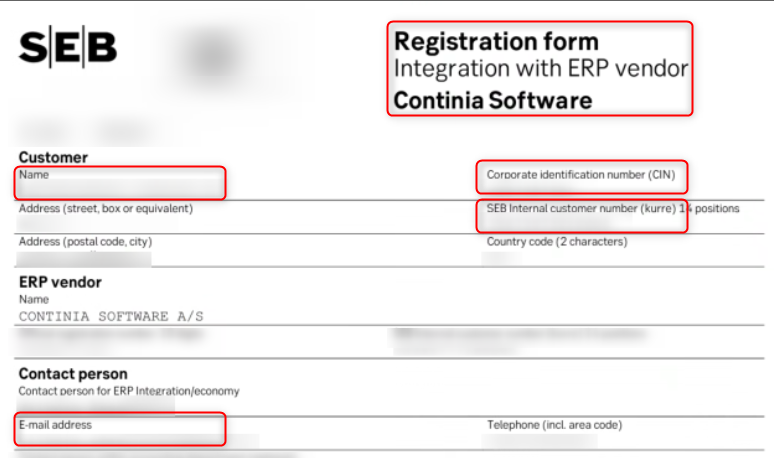
Use the SEB form Registration form – Integration with ERP vendor – Continia Software as your source. Enter the values in Continia Banking exactly as they appear on the form SEB has confirmed:
- Company Name - from Customer > Name (top-left section). Use the full legal entity name, not a trading or abbreviation.
- Registration No. - from Customer > Corporate identification number (CIN).
- Bank Agreement No. - from Customer > SEB internal customer number (kurre) (14 digits).
- Contact Email - from Contact person > E-mail address. The address must match exactly.
If any fields are blank, SEB must assign or confirm the values. Obtain the completed form from your SEB contact before continuing.
All values must match SEB's registration exactly. Even minor differences in spelling, spacing, or number formatting can cause the connection to be rejected and the bank account setup to remain Pending.