Onboarding Handelsbanken GlobalOn-Line
As a customer of Handelsbanken, using Handelsbanken GlobalOn-Line with Global Gateway SFTP communication, you can send and retrieve bank files between Handelsbanken and Microsoft Dynamics 365 Business Central using Continia Banking.
Wichtig
Continia Banking doesn't support accounts set up with the Corporate Signing agreement. This agreement requires a PGP key for functionality, which Continia Banking doesn't support.
This article explains how to establish direct communication between Handelsbanken GlobalOn-Line and Continia Banking. It consists of the following phases:
- Sign up at Handelsbanken GlobalOn-Line
- Order the bank files
- Set up an SMTP email account (if not created earlier)
- Set up direct communication
- Finalize the setup
To sign up for a Handelsbanken GlobalOn-Line agreement
To establish direct communication between Continia Banking and Handelsbanken, you must contact your cash management adviser at your bank and request access to the bank's online banking solution, and subscribe to the following services:
- Handelsbanken GlobalOn-Line
- Handelsbanken Global Gateway SFTP communication
When the agreement is approved, you receive an email that contains the following details:
- Agreement number
- User number, which is used to authenticate the connection from Business Central.
- Paths for importing and exporting files that need to be entered on the bank card.
To order bank files
When the agreement with Handelsbanken is in place, contact your cash management adviser to order the following files:
- Pain002 - statusrapport (ink. accept på transaktionsnivå)
- Camt54 - Debetatvis
- Daglig
- Alla betalninger
- Camt54 - Kreditavi
- Daglig
- Alla betalninger
- Camt53 - Saldo och transaktioner
- Daglig
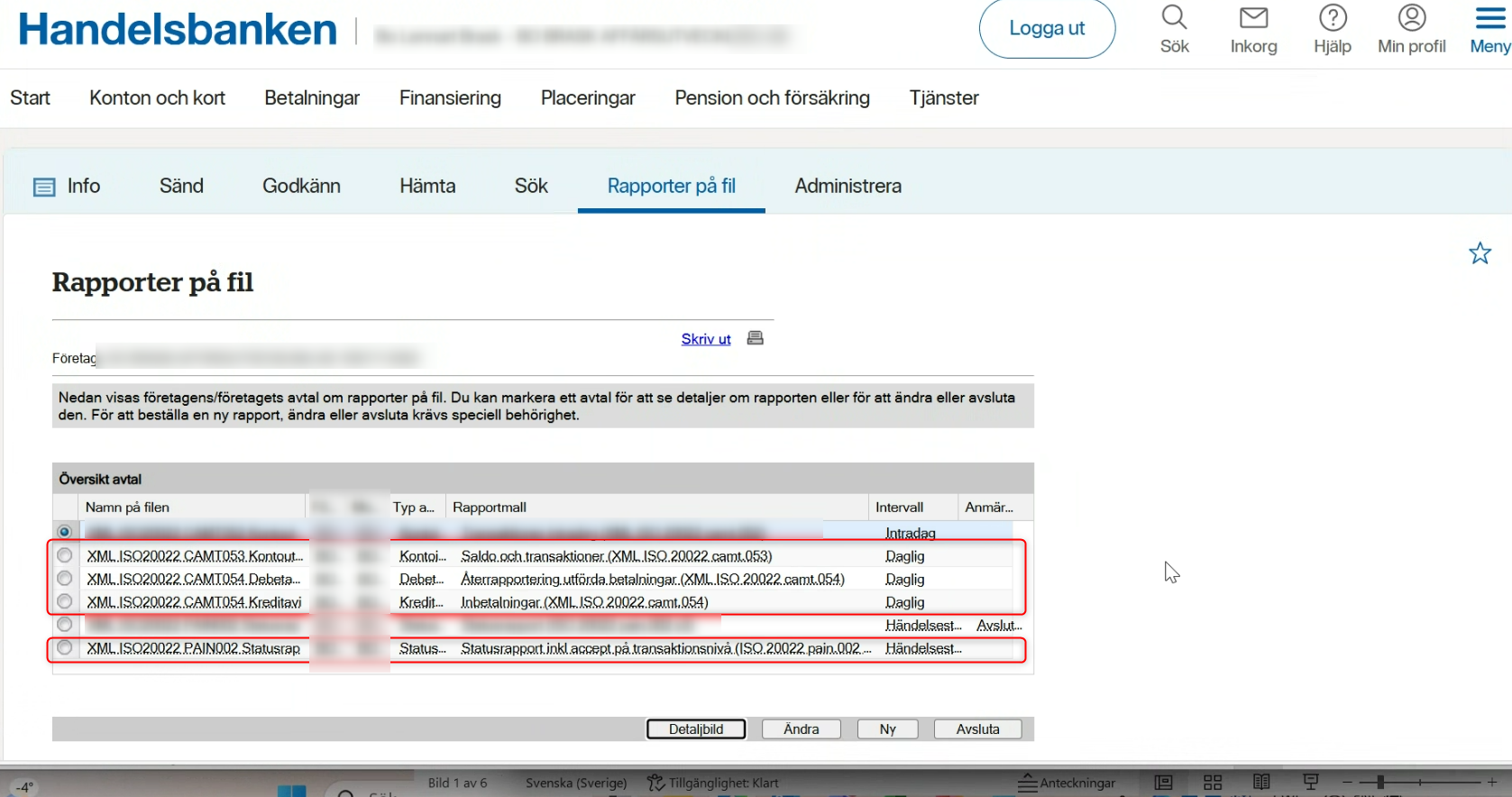
To set up an SMTP email account
Before you can set up direct communication, the SFTP communication agreement must be established in Business Central for authentication and authorization.
Wichtig
You can only set up direct communication in a production environment and not in a sandbox environment.
To set up an SMTP email account:
- Search () for and select Set up Email.
- Click Next to start setting up the email account.
- In the overview of email account types, select SMTP, and then click Next.
- Enter the required account information, and click Next.
- Click Finish to save the setup and close the assisted guide.
Hinweis
For more information about SMTP email accounts, see Set up email (Microsoft article).
To set up direct communication
When you have received the agreement from Handelsbanken GlobalOn-Line, you can proceed with setting up direct communication in Continia Banking.
To set up direct communication:
Search () for and select Bank Account Setup.
Click Next to begin the assisted setup.
On the Bank Accounts page, select an existing bank account, or create a new one by selecting New Bank Account.
In the Communication column, ensure that Direct is selected for the bank account, and then click Next.
Note
If any bank account information is missing, you may be prompted to verify or update the information.
On the Choose bank system page, select HBISO20022.
On the Create Keys page, fill in the fields as requested. Continia Banking fills in most of the fields with existing information from Business Central. Enter the information that you received in the email from the bank.
Field Description SHB No./Organization No. Companies based in Sweden must use their Swedish organization number. If your company is based in a different country, you must use the GlobalOn-Line agreement number that you received in the email from Handelsbanken. The number is also called the Handelsbanken SHB-number, and it always starts with "33". User No. The User No./User ID that you received in an email from Handelsbanken when you signed the GlobalOn-Line agreement. PIN Code Your password to Handelsbanken Global Gateway SFTP. Create one yourself using a combination of numbers, letters, and capital letters. Don't use language-specific characters. SFTP Certificate Email Add your email address and when the email is generated, forward it to your contact at Handelsbanken for them to handle the last step of the setup. Click Next to complete the bank account setup. The SMTP mail server sends an email to the designated contact email address, usually the cash management adviser. This adviser must forward the email promptly to the respective customer contact at Handelsbanken. The email contains the details and the SSH key that Handelsbanken needs to complete the setup process.
Wichtig
After completing bank account setup, go to Bank Systems and open Handelsbanken. On the Handelsbanken page, select an Export Filename Template. Select HBISO20022 with Pattern _FIKS*A793868*. The alternative option, _HBISO20022*2*, is rarely needed and should only be used if specified in your bank agreement.
To finalize the setup
To complete the setup on the bank card:
- Search () for and select Banks - Continia Banking.
- Open the relevant Handelsbanken bank card.
- On the bank card, navigate to the Communication Agreement FastTab and fill in the following fields:
- File Path/Folder for Import - enter the import folder name. Use: out (no backslashes).
- File Path/Folder for Export - enter the export folder name. Use: in (no backslashes).
Wichtig
If the connection can't be established, please check the file archive for the error code and contact Continia to resolve the issue.
Recommended next steps
When you have set up your bank accounts to use direct communication, you can continue the setup of Continia Banking by following the recommended steps as specified in the Quickstart guide to setting up Continia Banking.