Setting up Accounting Rules
intro
BC Code Accounting Rules
The BC Code Accounting Rules table is used for the evaluation of the purpose during bank imports.
In this view, only the accounting rules for the business case code (BC code) of the bank documents are shown (which means that a predefined filter with the value 42 is set in the Field No. field).
In OPplus Base, this table will be filled with values for the BC codes 104 (direct debiting), 105 (collection), 109 (charge back), 051 (transfer) and 152 (standing order) when running the Generate OPplus Setup Data function.
If the BC Code field in the import file lines has other values, the application will automatically copy them into this table as new catchwords 1. Here the Document Type field is always set to the Payment option and the Account Type field respectively to the Customer option.
Here you can account for fees (e. g. PayPal – import via csv port). Setup of fees is done via the options (“Fees from CSV-Port”, “Amount without Fees” and “Draw Sign of Fees”). Further accounting rules can be displayed by selecting Base → Setup > Accounting Rules. For a description of individual fields, please refer to chapter Accounting Rules.
Note
Due to the fact that some bank institutions use the ”Posting Key” field instead of the “Business Case Code” field in order to explain the business case, the ”Posting Key” field will be copied into the “Business Case Code” field if the business case code is empty.
Warning
You can also specify accounting rules for other fields of the bank document. If you enter another value (other than 42) in the Field No. field, the record will be filtered out by the predefined filter. However, you can display/change it by selecting Accounting Rules.
Accounting Rules
The Accounting Rules window shows all account rules of the bank document – except for those of the BC Code field which can be displayed by selecting BC Code Accounting Rules. The Accounting Rules table is used for the evaluation of the purpose during bank imports.

Note
The picture does not contain all columns/fields. To display all, select Actions > Edit.
| Option | Description |
|---|---|
| Last Date Used | This column shows the date the accounting rule was used the last time. |
| Quantity Used | This column shows the number of times the accounting rule has been used. |
| These fields enable to easily identify any unused or incorrect accounting rules. |
Important
Keep in mind not to use the current year as a catchword. The accounting would take place which is prevented by a system check during entry.
Due to the fact that not all configurable fields are shown in this list, you have to click Actions -> Edit to open the corresponding Accounting Rules card.
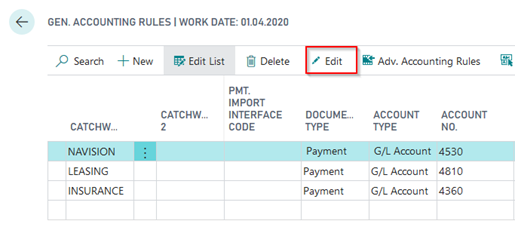
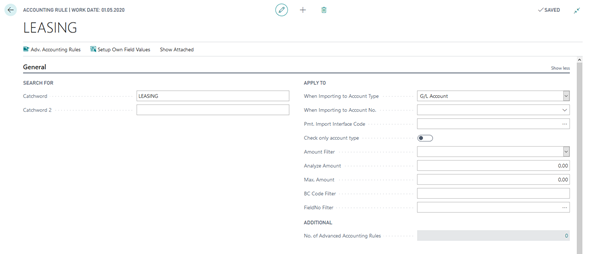
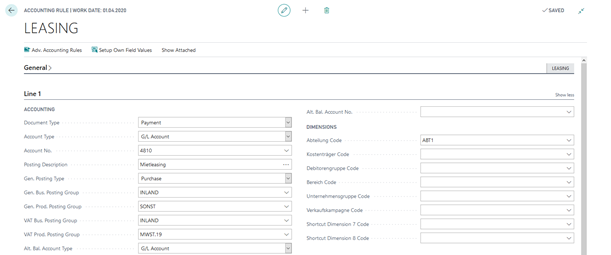
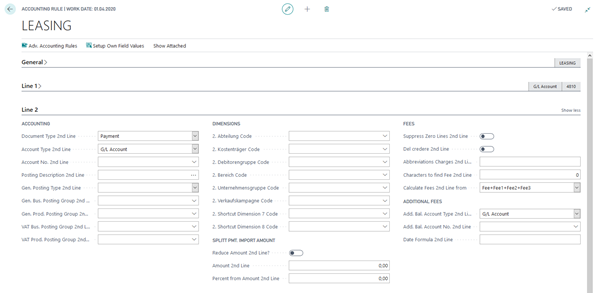
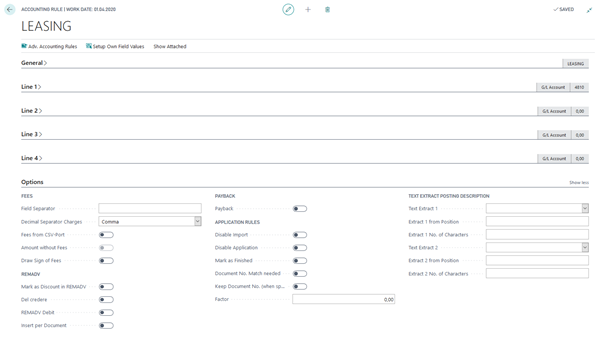
Once you have switched via Actions onto the card you can specify up to 4 lines for initial account assignment. Furthermore you might assign postings groups as well as the different shortcut dimensions.
Accountin Rules - General Tab
Accountin Rules - Line 1 Tab
Accountin Rules - Line 2 Tab
Accountin Rules - Line 3 Tab
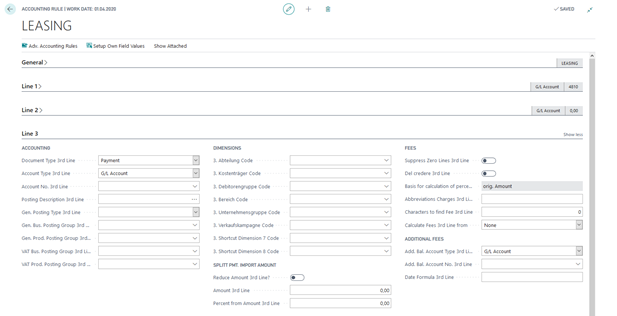
Accountin Rules - Line 4 Tab
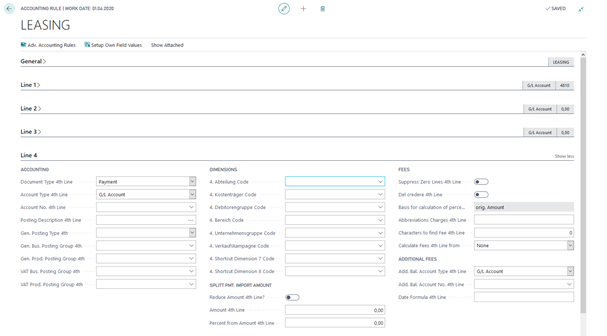
Accountin Rules - Options Tab
Note
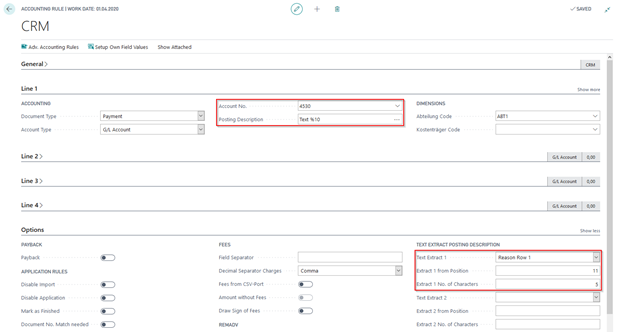
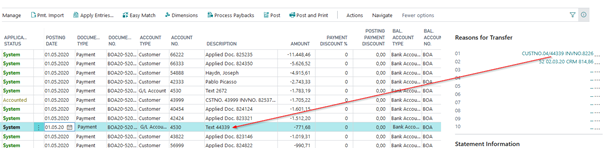
Example for Text Selection: The following example shows, that the corresponding text of purpose 1 (12345-Export-4321) has been used as posting description “-Export-“.
Adv. Accounting Rules
You can alsodefine an unlimited number of additional lines per accounting rule.
To do so, select the “Adv. Accounting Rules” icon on the Actions tab:
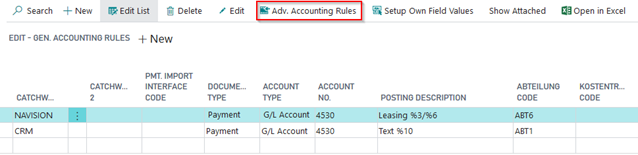
You can specify the following settings:
- Setup of line 1-4 on the Card and line 5 onwards in the Ext. Accounting Rules
- Setup of line 1-2 on the Card and line 3 onwards in the Ext. Accounting Rules
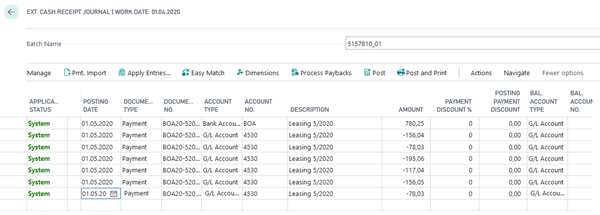
The user can freely define the lines as desired and does not need to change any existing accounting rules (if applicable). In the Adv. Accounting Rules window, you will find the same fields as offered in the Accounting Rules window.

During the import of an import line by using this accounting rule, the lines which are correspondingly set up will be created automatically.
Accounting Rule per Interface
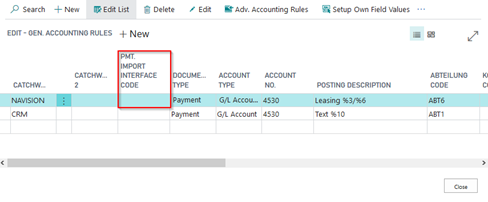
The accounting rules can be defined differently for each interface. It is possible, for example, that an accounting rule should only apply to one bank account.
If you search for a value here, the window of registered interfaces opens and you can select the desired interface.
If the catchword is already being used for other imports, this accounting rule is therefore not used.
Alternatively, you can select the relevant account in the Import to Account Type and Import to Account No. fields.
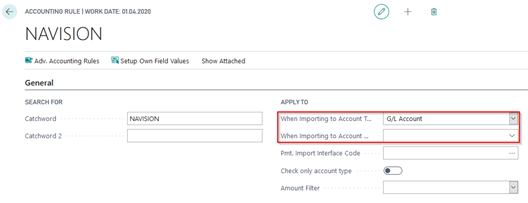
This is useful if you post all payment advice interfaces to a particular G/L account, e.g. money transit. An accounting rule should then apply to all payment advice notes posted to this account.
Accounting Rule per Field
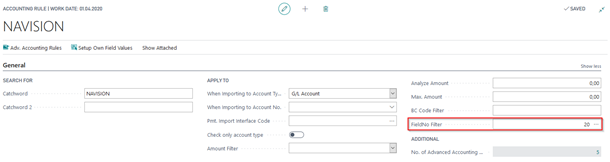
The “Field No.” field in the Accounting Rules is used to transform field contents, which refer to a particular field into rules.
For example, you can also select field 20 and the accounting rule only applies if a specific text appears in field 20 (purpose 2).
Alt. Bal. Account in Accounting Rule
In the Accounting Rule, it should be possible to select an alternative balancing account. This way, the Bal. Account field of the import interface is overwritten.
Example: If you want to charge an additional fee for payback, this may not debit the bank account. However, you can generate them automatically and post them as entries using the bank statement data:
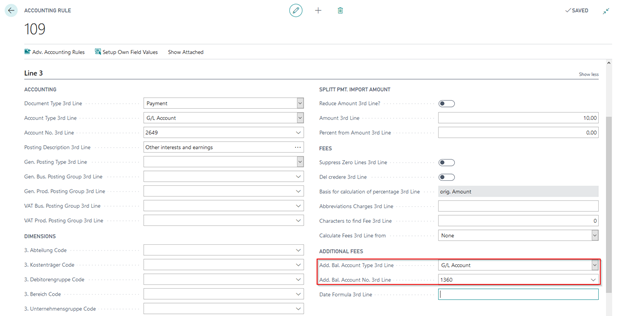
In the Accounting Rule, the G/L Account 1360 is selected as Alt. Bal. Account.
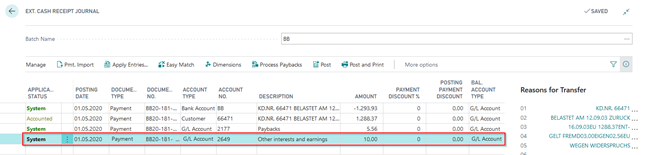
An additional line is now created during import:
Setup Own Fields Values
It is possible to fill further and therefore also customer-specific fields in the journal line. This enhancement applies to BC Code Accounting Rules, Accounting Rules and Adv. Accounting Rules. Select the "Setup own field values" function button.
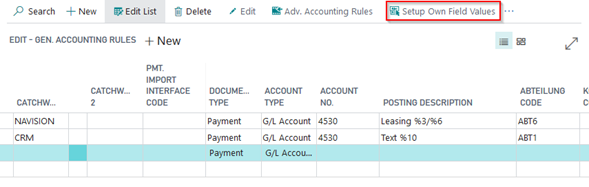
A window opens in which the field number must be defined accordingly.
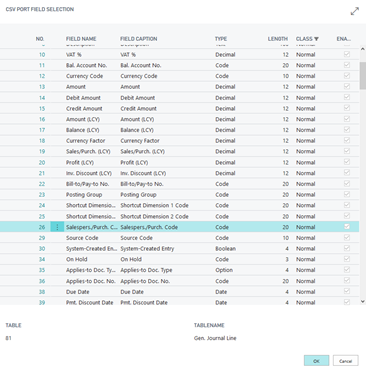
By using the lookup function of this field, you get to a field overview in the journal line. A selection is correspondingly easy.
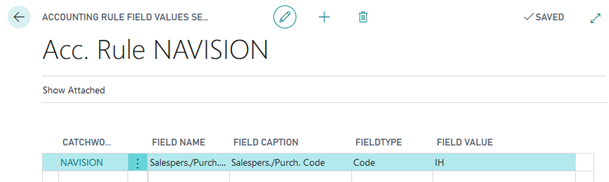
Select the field if, as an example, the salesperson code in the journal line is to be defined as fixed for a particular accounting rule.
In the "Field value" field you can enter a corresponding code. This code is only checked against the configured salesperson codes at runtime.
If an account assignment takes place using the set up accounting rule, the corresponding values are then filled in the journal line.
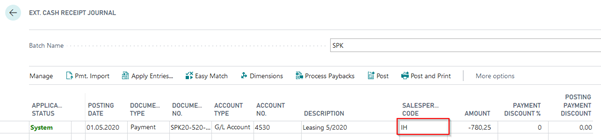
This enables individual fields to be filled without programming.