Creating payment proposals
In OPplus, you can create payment proposals for customers, vendors, and employees. The overall process is identical, with only minor differences in filters and available options depending on the account type.
To create a payment proposal
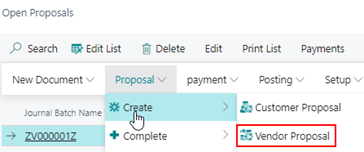
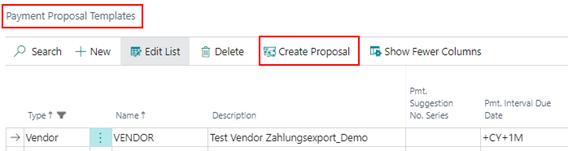
You can create payment proposals in the following ways:
OPplus Role Center
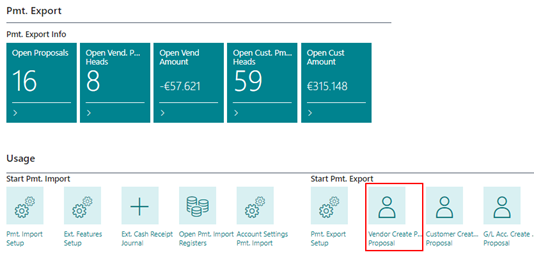
Open proposals
Payment proposal templates
In all cases, the Report Request Page opens automatically with the relevant setup options.
Filter tab (ledger entries)
Use this tab to define which ledger entries are included. Additional filter criteria can be specified as needed.
To configure the options
The Options tab can be collapsed (Show Less) or expanded (Show More) to display all fields.
The available options depend on the account type.
Common options (all account types)
| Option | Description |
|---|---|
| Posting Date | Specifies the posting date of the payment proposal. The value can be changed as long as the proposal is not posted. |
| Payment Account Type | Select the balancing account type (G/L account or bank account). |
| Payment Account No. | Enter the account number for the selected account type. |
| Use Payment Type Code | Overrides the payment type code for all payments in the proposal. |
| Save as Template | Save the current setup as a template or overwrite an existing one. |
| Template Description | Updates the description of the selected template. |
| Description | Defines the description of the payment proposal. |
Advanced options (customers and vendors only)
These options are available for customer and vendor payment proposals:
| Option | Description |
|---|---|
| Last Due Date | Defines the latest due date for entries to be included. |
| Last Pmt. Discount Date | Defines the latest discount date considered. |
| Pmt. Discount Options | Controls how payment discounts are handled (Always, As Entered, Period, None). |
| Execution Date | Specifies when the payment is executed by the bank. |
| Line Sorting | Defines sorting of payment lines (e.g., due date, document no.). |
| Summarize per Pmt. Head | Creates one posting per proposal instead of per entry. |
| Show all open entries | Displays all entries, not only due ones. |
| With Backlog | Includes accounts with overpayment balances. |
| Association Pmt. | Includes entries from associated accounts (requires module). |
| Cust./Vend. Linking | Includes linked customer/vendor accounts. |
| Only clearing accounts | Limits proposals to grouped accounts. |
| Include on Hold | Includes entries marked as on hold. |
To create the proposal
- Choose and configure filters and options.
- Select OK.
A new payment proposal is created based on your setup.
The result
- The proposal number is assigned based on the number series in Pmt. Export Setup.
- You can edit the proposal in the payment proposal list or via the Role Center.
During creation, the system checks whether entries exist that are due for payment:
- Customer: checks receivables
- Vendor: checks payables
- Employee: checks employee balances
If post-processing is executed, a dialog is displayed. Wait until the process is completed.