Editing fields captured by the AI Receipt Scanner
Prior to submitting a receipt or PDF to an expense, you can edit or correct any information captured by the AI Receipt Scanner in the Expense Mobile App (available from version 26.01 onwards).
Note
This feature is currently only available in the Expense Mobile App, not the Expense Portal.
To edit information in the fields of a scanned receipt:
- Upload an image to the Receipts list in the Expense Mobile App.
- Swipe left on the line of the receipt that you want to edit.
- In the menu, tap Details.

- In the top right corner of the screen in Receipt Details, tap Edit.
- Edit any of the fields that have scanned information incorrectly, such as the date or merchant name. If the AI Receipt scanner has incorrectly marked a receipt or document to be an invoice, for example, then you can edit this information in the Attachment Type and Invoice fields.
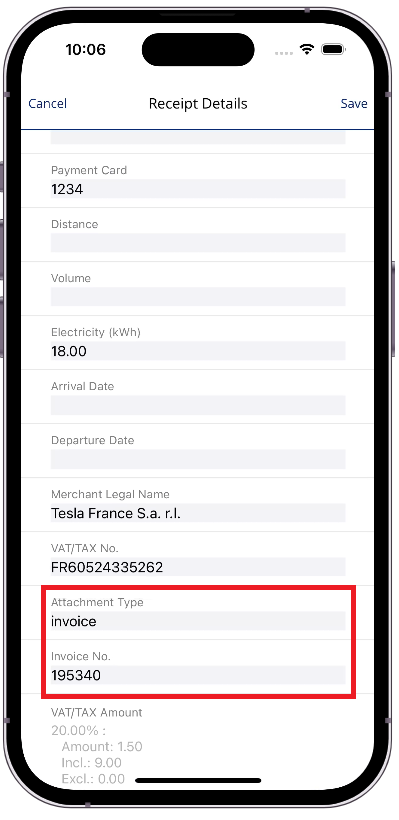
- When you have finished editing, tap Save in the top right corner of the screen.
You can now attach the receipt to the expense with the updated information.
Related information
Capturing expense data using the AI Receipt Scanner
ISO-based country mapping for the AI Receipt Scanner
The Continia Expense Mobile App