Managing exchange rate adjustments
When you process payments to vendors in a foreign currency, the exchange rate used for the payment might differ from the exchange rate applied on the original invoice. This can result in exchange-rate differences when the payment is settled.
By default, Continia Banking uses the exchange rates configured in the Currency Exchange Rates table in Business Central. If the original invoice was posted using a fixed or hedged exchange rate, you can apply the same exchange rate to the payment to prevent exchange-rate differences during settlement.
To apply a custom exchange rate to a payment
When you create a payment suggestion for a foreign-currency vendor ledger entry, Continia Banking uses the exchange rate from the Currency Exchange Rates table when the payment is posted.
In some situations, you may want to apply a different exchange rate. For example, if a purchase invoice was hedged using a fixed exchange rate, using the current exchange rate from the Currency Exchange Rates table may create an exchange-rate difference when the payment is applied.
To avoid this exchange rate difference, you can specify a custom exchange rate on the Payment Card.
To apply a custom exchange rate:
- Open the Payment Card for the payment.
- In the Payment Currency Code field, click the assist-edit button (...).
- In the Change Exchange Rate page, enter the exchange rate you want to use.
- Click OK.
The selected exchange rate is transferred to the payment journal line when journal lines are created or updated. When the payment is posted, Business Central uses the specified exchange rate for the currency conversion.
To prevent exchange-rate differences during settlement, use the same exchange rate that was applied on the original purchase invoice.
Important considerations
- If you change the payment currency after specifying a custom exchange rate, the custom exchange rate is cleared and must be entered again.
- You can also use custom exchange rates on allocated payments.
- If you don't specify a custom exchange rate, Continia Banking uses the exchange rate from the Currency Exchange Rates table.
To keep exchange rates up to date automatically
If you prefer to use current market exchange rates, you can configure an exchange rate service to automatically update the Currency Exchange Rates table in Business Central.
For detailed information about managing exchange rates, see Update currency exchange rates (Microsoft article)
To enable exchange rate adjustments:
- Search () for and select Currency Exchange Rate Services.
- Click New. For further details about the Microsoft procedure, see Set up a currency exchange rate service (Microsoft article).
Note
Business Central automatically sets up a job queue entry to import exchange rates from the configured service.
Examples:
| Service | Example setup |
|---|---|
ECB - European Central Bank | 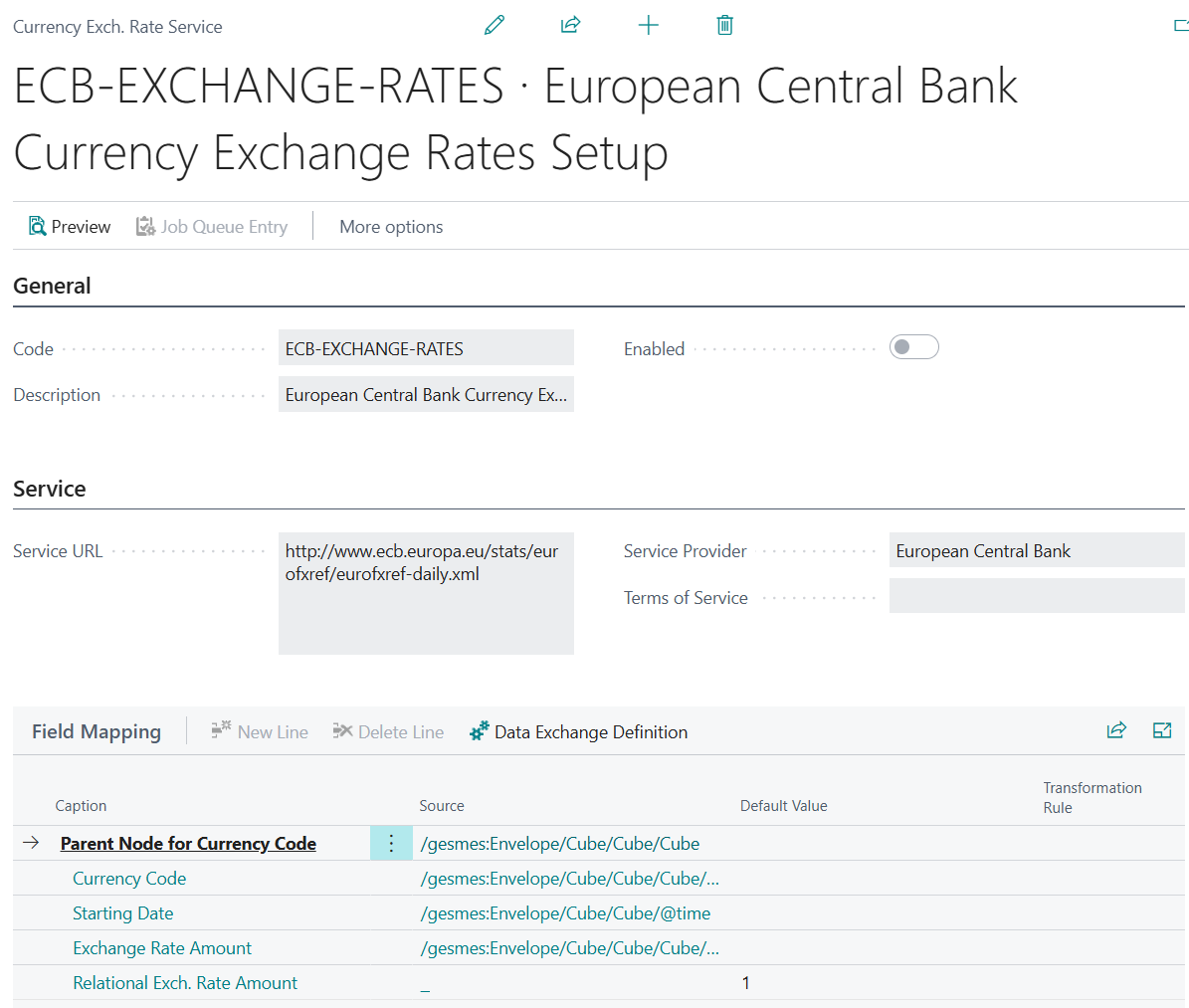 |
Nationalbanken – Denmark | 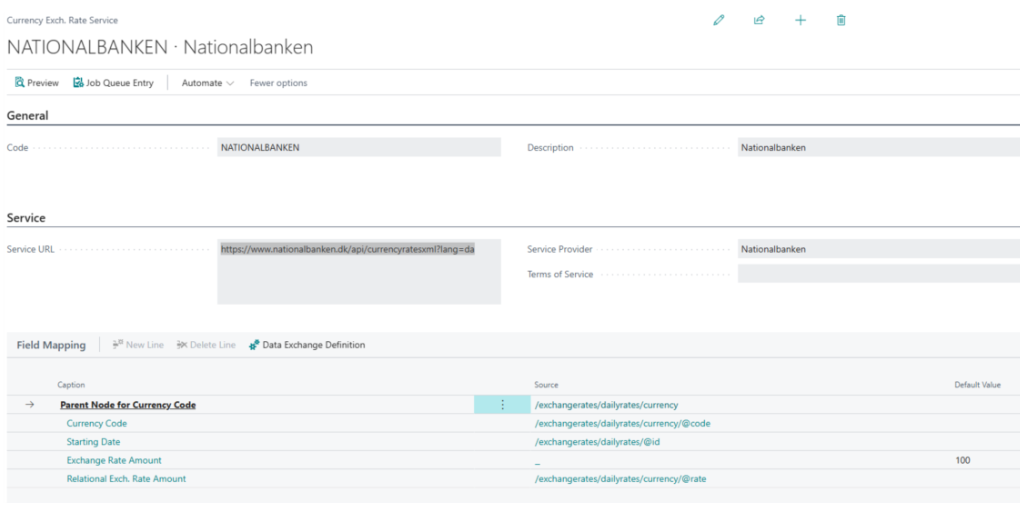 |