Configuring remittance information
Remittance information identifies invoices and other payment details for payees. Include this information in payment files or send it separately as remittance advice.
During activation, Continia Banking creates the DEFREMIT-SINGLELINE template. This template provides the default remittance text. Do not change the default template.
Use this article to configure remittance delivery and select a template. To create a custom template, see Adding a remittance information template.
To configure remittance settings
Use the Remittance FastTab to configure how Continia Banking creates and sends remittance advice.
To configure remittance settings:
- Search () for and select Banking Export Setup.
- Expand the Remittance FastTab.
- Configure the fields described in the following table.
| Field | Description |
|---|---|
| Remittance Advice Template | This field template is used, whenever a remittance advice should be used. You can use the default remittance advice template provided by Continia Banking or configure a custom template to meet your organization's requirements. |
| Default Information Type | Specifies the default remittance advice used when nothing is specified within the account. This setting determines how remittance information is delivered when payments are processed. Available options:
The selected value is applied automatically to new vendors but can be changed on individual vendor cards when different remittance handling is required. |
| BCC Email | Specifies the email address that receives a copy of all remittance advice emails. |
| Default Language Code | Specifies the default language used to generate remittance advice. |
| Create Remittance Advice After Number of Entries | Specifies the number of payment entries required before Continia Banking creates and sends a remittance advice. If you want to send remittance advices for all payments, enter 1 in this field. |
| Create New Payment After Number of Entries | Specifies the number of payment entries allowed in a payment before Continia Banking creates a new payment. |
| Email Sending Method | Specifies when remittance advice emails are sent. Available options are Manually, On post, Job queue, and On create payment. If you select Job queue, remittance advice is created and processed by a scheduled job. For more information, see Using job queues to schedule tasks. |
| Template | This field controls the remittance information that is included with a payment when no remittance advice is sent. For example, the remittance information can include the document type and document number. |
| Template Direct Debit | This field controls the remittance information that is included with a direct debit when no remittance advice is sent. For example, the remittance information can include the document type and document number. |
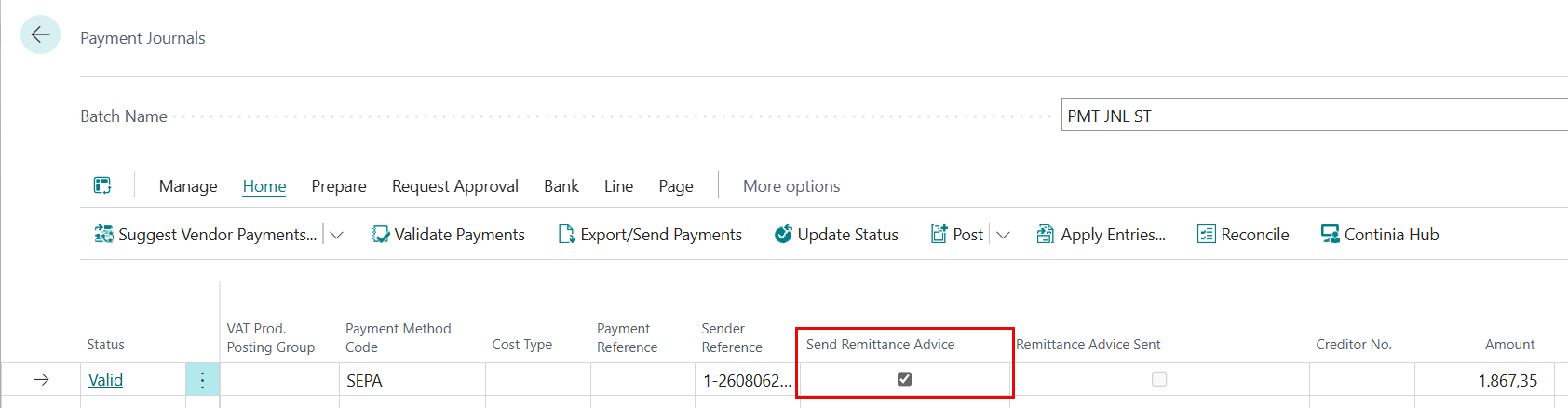
The Send Remittance Advice field in the payment journal
The Send Remittance Advice checkbox controls whether Continia Banking creates remittance advice for journal payments. In Advanced mode, Continia Banking selects the checkbox automatically.
If you clear the checkbox, Continia Banking creates no entries in the Remittance Advice Outbox. It also creates no remittance advice. You cannot create remittance advice automatically after posting.
Select the checkbox before posting. Configure payment suggestions to select it automatically, or select it manually.
To configure a report
To send remittance advice, configure a report on the Banking Report Selection page. Each usage type has its own line, so you can use the same report for all three types or assign a different report to each type. Use a different report per type when vendors, customers, and employees require their own layouts. By default, Continia Banking uses the same report for all three types.
To send remittance advices, configure a report on the Banking Report Selections page.
- Search for and select Banking Report Selection.
- In the Usage field, select the type of document the report is used for. The options are:
*
Banking Remittance Advice (Vendor) - for vendor remittance advices
- Banking Remittance Advice (Customer) - for customer remittance advices
- Banking Remittance Advice (Employee) - for employee remittance advices.
- Banking SEPA Mandate - for SEPA direct debit mandates. For more information, see Working with SEPA mandate reports and email delivery.
- Configure the report by adding a Report ID, Report Name, and specifying the email layout.
To use separate email accounts per remittance type
You can use separate email accounts for vendor, customer, and employee remittance advices. The email account assigned to each remittance type determines the email address shown in the From email field.
In Email Scenario Assignment, assign an email account to one or more of the following scenarios:
- Banking Remittance Advice (Vendor)
- Banking Remittance Advice (Customer)
- Banking Remittance Advice (Employee)
When Continia Banking sends a remittance advice, it automatically uses the email scenario that matches the remittance type. By assigning different email accounts to the scenarios, you can control which email address appears in the From email field for vendor, customer, and employee remittance advices.
You can also configure separate report layouts for each remittance type in Report Selection. By default, the same report is used for vendor, customer, and employee remittance advices. If needed, you can assign a different report to each type to use separate layouts.
Note
If no email account is assigned to the Banking Remittance Advice (Customer) or Banking Remittance Advice (Vendor) scenario, Continia Banking falls back to the email account assigned to Banking Remittance Advice (Employee). This ensures that existing setups continue to send remittance advices without requiring additional configuration.
Remittance advice email reports must be based on the CTS-PE Remittance Advice Email table. The Remittance Advice Outbox uses the same table. Reports based on a different structure might cause errors. For example, standard report 399 uses different data items.
To choose a remittance information template
Set the default template on Banking Export Setup. A payment suggestion template, payment journal setup, or request page can override the default. If no location specifies a template, Continia Banking uses DEFREMIT-SINGLELINE.
To change the default template
- Search () for and select Banking Export Setup.
- On the Remittance FastTab, in Remittance Information Template, select a template.
For field descriptions, see Configuring export settings.
To change a payment suggestion template
- Search () for and select Payment Suggestion Templates.
- In Remittance Information Template, select a template.
For more information, see Setting up payment suggestion templates.
To change a payment journal setup
To select a template for a payment journal:
- Search () for and select Payment Journals.
- In Batch Name, click the three-dot menu. Select a journal on General Journal Batches.
- On the action bar, click Related > Payments > Other > Payment Journal Setup.
- On the Templates FastTab, in Remittance Information, select a template.
To change the Suggest Payment request
To set the remittance template applied when generating payment suggestions:
- Search () for and select Payment Journals.
- In Batch Name, click the three-dot menu. Select a journal on General Journal Batches.
- On the action bar, click Home > Suggest Vendor Payments, Suggest Customer Payments, or Suggest Employee Payments.
- In Text Templates, select a template in Remittance Information Template.
For more information, see Suggesting and processing payments.