The Payment Application Review page
The Payment Application Review page is the main workspace for reviewing and applying payment application proposals. It shows the imported bank transaction alongside all potential matching ledger entries, giving you the information you need to complete reconciliation.
You can access the page from both Bank Account Reconciliation and the Payment Reconciliation Journal by selecting a line and clicking the Status or Proposal column, or clicking Home > Application Proposals.
The page is divided into several sections that help you review transactions, evaluate proposals, and complete reconciliation.
Transaction Details
This section shows information from the bank statement line, including the reconciliation status, transaction date, and description. You can also open Reconciliation Line Details to view additional imported information.
Applied To
The Applied to section shows the account that the payment will be applied to when you post reconciliation. You can update the account information manually if needed.
The account information can be set by automatic reconciliation but can also be manually edited. The account type and account number are used for filtering when invoking the Ledger Entries action.
Related Party
Under General, when available from the bank statement, the Related Party section displays information such as name, address, bank account number, and IBAN.
Note
The Related Party section is only visible when the bank statement includes this information, typically from ISO 20022 files.
Payment Application Proposals subpage
The Payment Application Proposals subpage lists all proposals created automatically during the matching process. Each proposal represents a potential match between the bank statement line and a ledger entry.

Although you cannot manually create proposals, you can review them, adjust applied amounts, and choose whether a proposal should be applied.
To apply or unapply a proposal, set or clear the Applied checkbox. You can also edit fields such as applied amount, payment discount values, or tolerance fields as needed.
If a proposal refers to a ledger entry that is already applied on another Bank Account Reconciliation Line or in another journal, it is not applied automatically. In this case, the reconciliation status of the line is set to Review Proposals. On the Payment Application Review page, this is indicated in two ways:
- A notification informs you that one or more proposals are already applied and lets you open the journal where the entry is applied.
- Proposals that are already applied are shown in blue italics.
If you try to apply a proposal that is already applied elsewhere, the system stops the action and shows an error message.
Actions available on the Payment Application Proposals subpage
In the Payment Application Proposals section, you can apply partial payments or transfer differences using the available actions.
To revert changes:
- If you clear the Applied checkbox, the system restores the original values. This makes it easy to undo unwanted changes.
Apply Partial Payment
Use Apply Partial Payment when the remaining amount can cover the difference. The action is available when the transaction amount partially covers the invoice amount. It appears under these conditions:
- If no entries have been applied yet, the transaction amount must be lower than the current remaining amount of the ledger entry.
- If entries have already been applied, the difference amount must be lower than the current remaining amount of the ledger entry.
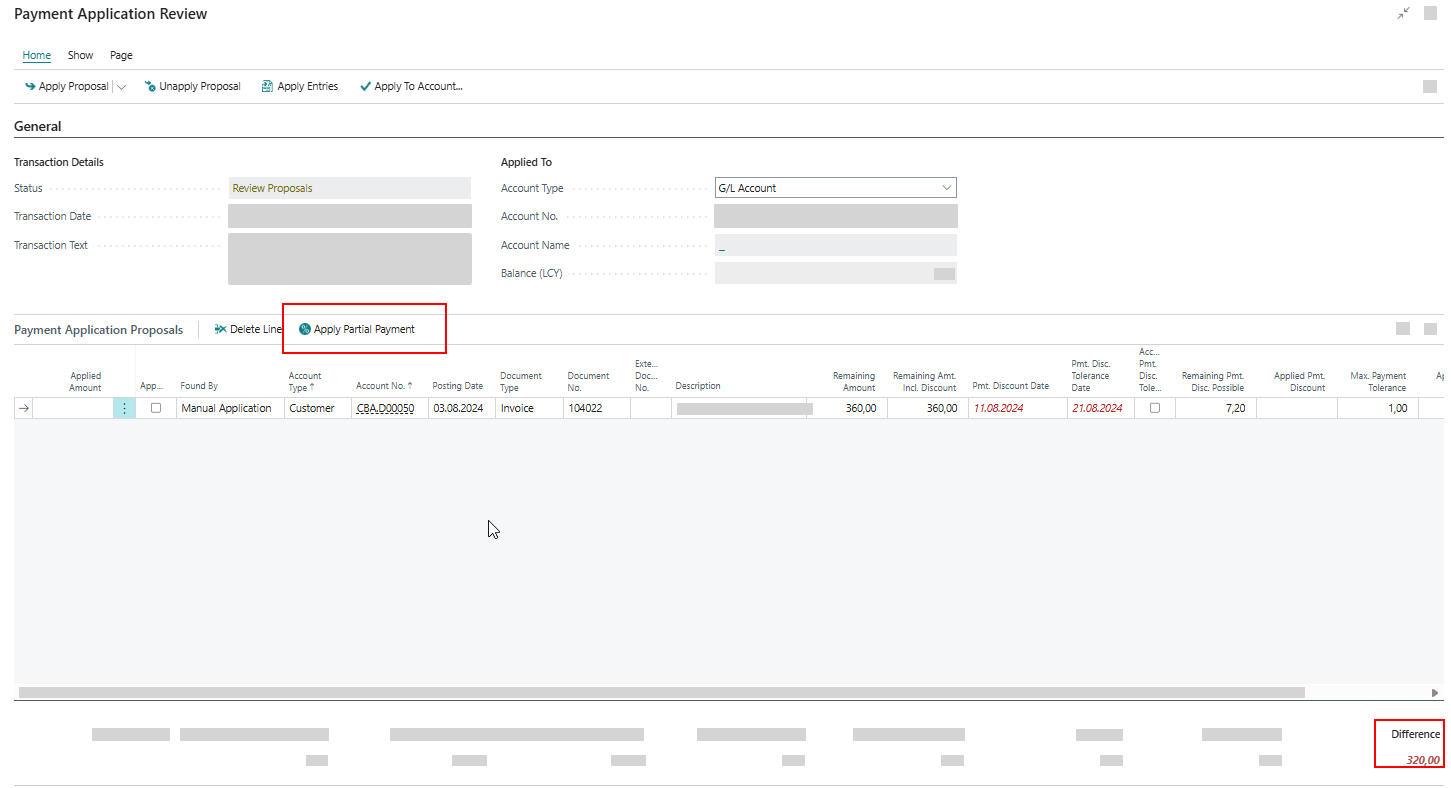
When you click Apply Partial Payment, it sets the Applied Amount to the partial payment amount or adjusts it based on the difference amount.
Payment discounts and payment tolerances cannot be used with partial payments. The system clears any existing discount values automatically.
Transfer a Difference to Payment Discount
Use Transfer Difference to Payment Discount when a small difference can be covered by the payment discount or when the payment discount has expired. The action updates several fields at once:
- Applied Amount
- Pmt. Disc. Date (if it is expired it is set to the transaction date)
- Remaining Pmt. Discount Possible
- Applied Pmt. Discount
- Remaining Amount (Incl. Discount)
Transfer a Difference to Payment Discount Tolerance
This action appears when the difference is caused by an expired Payment Discount Tolerance. It updates the following fields:
- Pmt. Disc. Tolerance Date (if it is expired it is set to the transaction date)
- Accepted Pmt. Discount Tolerance
- Remaining Amount (Incl. Discount)
- Applied Amount
- Applied Payment Discount
- Remaining Pmt. Discount Possible
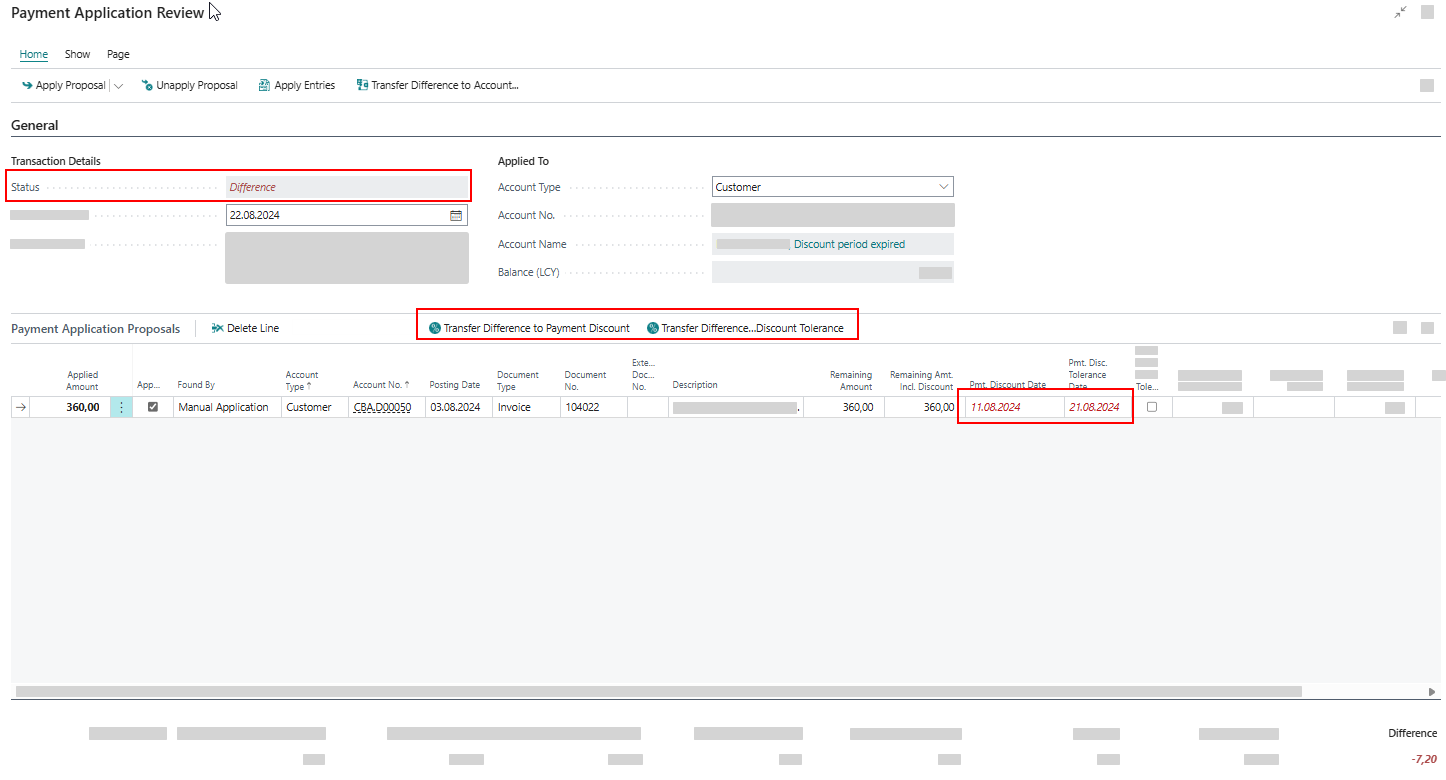
If both the Pmt. Disc. Tolerance Date and the Pmt. Disc. Date have expired, both actions are available:
- Transfer Difference to Payment Discount
- Transfer Difference to Discount Tolerance
Transfer Difference to Payment Tolerance
This action appears when the difference is lower than the Max. Payment Tolerance Amount. It updates these fields:
- Applied Pmt. Tolerance
- Applied Amount
Ledger Entries subpage
The Ledger Entries subpage appears when you click Apply Entries. It shows all open ledger entries for the selected account type and number so you can apply the correct entry manually. Filtering by account type is supported, and G/L Account entries integrate with G/L Open Entries (Continia Finance). Click Show Payment Application Proposals to return to the proposals view.
Direct Debit Return Entries subpage
This subpage appears when the transaction is identified as a direct debit return. It shows the return information and lets you process the returned entries.
Tip
Use Page > Show More Columns to display additional fields for tolerances, discounts, and currencies. This helps you verify amounts when applying proposals.
Totals
The totals section contains the totals for the Bank Account Reconciliation Line and recalculates as you apply, unapply, or delete payment application proposals. The Applied Amount is green when the difference between the Statement Amount and the Applied Amount is zero. If any difference occurs, it turns bold and red.

Transaction amounts
- Statement Amount (Bank Reconciliation) or Transaction Amount (Payment Reconciliation) - the bank transaction amount.
- Split Amount - the amount assigned to split lines created by split rules (if any).
- Transferred Difference Amount - the amount already transferred as difference to journals or accounts (if any).
Application amounts
- Payment Application Proposal Amount - total amount of selected proposals.
- Applied Amount - total amount being applied to ledger entries.
- Applied Pmt. Discount - total payment discount being applied.
- Applied Pmt. Tolerance - total payment tolerance being applied (if applicable).
- Rounding - multi-currency rounding amount (if applicable).
Note
Watch the top of the Payment Application Review page for notifications that guide you to the next possible steps in reconciliation. Notifications often contain relevant actions to help you move on to the next step.
FactBoxes
FactBoxes provide contextual information based on your selection:
- Match Details - shows detailed matching information for the selected proposal such as additional transaction information from the bank statement, related party information (name, address, bank account), return reason codes and descriptions for direct debit returns, search rules or split rules applied to the line.
- Reconciliation Line Details - when you import bank statements, any additional information is automatically imported. This enables you to see details related to the imported bank transaction. You can add a search rule to map the transaction to an account based on this information.
- Reconciliation Line Charges - when you import bank statements, any charges are automatically imported. You can see fees, commissions, and other charges related to the imported bank transaction such as:
- Charge type - bank-specific code identifying the type of charge.
- Amount - the monetary value of the charge.
- Currency - the currency in which the charge is denominated (may differ from the transaction currency).
- Credit/Debit indicator - whether it's a charge (debit) or refund (credit).
- Included - whether the charge is included in the transaction amount or charged separately.
Related information
Introducing payment application proposals
Reviewing payment application proposals
Applying payment proposals
Payment application proposals FAQ