Creating and monitoring factoring proposals
This article describes how to create a factoring proposal with the receivables you want to sell to the factor.
To create a proposal
With the Create Proposal feature, you can use filters and other criteria to generate a factoring proposal that can then be submitted to the factor. To do this, follow these steps:
- Search (
 ) for and select Factors.
 - On the Factors page, select the the factor that you want to create a proposal for.
- In the action bar, select Create Proposal to open the Create Factoring Proposal page.
- On the Options FastTab, in Minimum Due Date (automatically prefilled but editable), specify the earliest invoice due date that may be included in the proposal.
- In Proposal including, choose how many previous proposals should be included in the new proposal you're creating:
- without: No previous proposals are included. Select this when you want to send a completely new proposal to the factor.
- only previous export: The most recent proposal for this factor will be included in the new proposal.
- always all previous exports: All previous proposals sent to this factor will always be included in the new proposal, but only open entries.
- Optional: Fill in any of the remaining fields as you prefer.
- On the Filter: Cust. Ledger Entry FastTab, add any filters you prefer to narrow down the number of receivables to be included in the proposal. For example, you can set the filter to only include invoices with a specific due date.
- On the Factor card, in the action bar, select Proposals to view the list of invoices that have been added based on your chosen settings and filters.
- On the Proposal Lines FastTab, in the list of invoices, select the ones you want to be included in the proposal for the factor.
Tip
On the General FastTab, the amounts of the selected invoices are tallied up in the Total Remaining Amount Selected Lines (LCY) field, while the Difference field displays the difference between this tally and the amount in Limit (LCY) (the financing limit agreed upon with the factor). You can check these fields to ensure that the sum of the invoices doesn't exceed the limit, meaning that the Difference amount should ideally be above zero.
- In the action bar, select Export Proposal to export the proposal as a CSV file.
Your factoring proposal is now exported and ready to be uploaded or sent to the factor.
To monitor proposals
With the Factoring module, you can always keep track of the factored receivables. For example, you can monitor the payment status of the receivables directly in the exported proposals, which allows you to keep an overview of which invoices are still outstanding and which invoices have been paid by the customers.
You can use the Import function to update the proposal with details from the factor, allowing you, for example, to see the status of receivables on the factor's side or view accepted or rejected invoices.
To monitor exported proposal lines, follow these steps:
- Search for and select Exported Factoring Proposals. Alternatively, on the Factors page, from the action bar, select Exported Proposals.
- In the list of proposals, in the No. column, select the one you want to monitor.
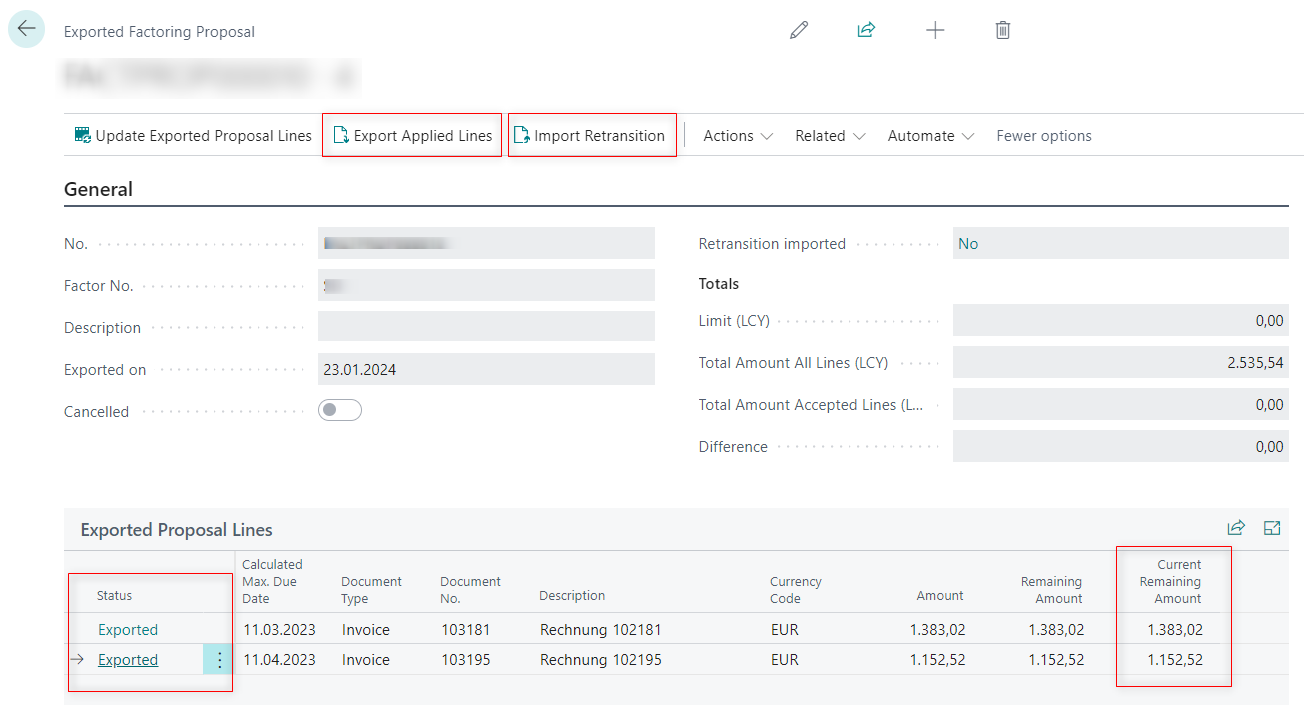
- The Exported Factoring Proposal page opens. Use any or all of the following features to efficiently track your proposals:
Current Remaining Amount: Check the amounts of this column, which provides information on whether the invoices associated with the exported lines have been paid since the export.
Export Applied Lines: In the action bar, select Export Applied Lines to update the factor on the payment status of exported invoices.
Import Retransition: In the action bar, select Import Retransition to import the status of the exported lines. To access the Retransition Data page, go to the Status column and select the status.